> ## Documentation Index
> Fetch the complete documentation index at: https://docs.chronosphere.io/llms.txt
> Use this file to discover all available pages before exploring further.
# Kubernetes Collector installation to retrieve metrics
export const ApiTokenList = () => <>
API_TOKEN: The API token generated from your service account. Chronosphere recommends storing your API token in a separate file or Kubernetes Secret and calling it using an environment variable, such as $API_TOKEN.
;
export const MyTenantList = () => <>
TENANT: The name of your Observability Platform tenant.
;
The recommended way to install the Chronosphere Collector to retrieve metrics data is
with a Kubernetes DaemonSet scraping endpoints, using either annotations or
ServiceMonitors. This configuration ensures that if a Collector pod restarts or
terminates, only the metrics in that node aren't scraped, and all other nodes remain
unaffected.
The following steps align with this method of installing the Collector.
You can also install the Collector with Kubernetes
[as a Deployment](/ingest/metrics-traces/collector/install/kubernetes#install-the-collector-using-a-deployment)
or [as a sidecar](/ingest/metrics-traces/collector/install/kubernetes#install-the-collector-as-a-sidecar).
The following steps assume that the applications running in the Kubernetes cluster
expose Prometheus metrics. To ingest other metric types such as StatsD, refer to
[Ingest additional metrics](/ingest/metrics-traces/collector/addl-metrics).
To install the Collector:
1. [Create an API token](#create-an-api-token).
2. [Define the Collector manifest](#define-the-collector-manifest).
3. [Create a Kubernetes secret](#create-a-kubernetes-secret).
4. [Install the Collector](#install-the-collector).
5. [Verify the Collector](#verify-the-collector).
## Create an API token
To interact with the Collector, you must
[create a service account](/administer/accounts-teams/service-accounts#create-a-restricted-service-account).
Chronosphere recommends creating a restricted service account with a write-only
scope. Use the generated API token in your Kubernetes `Secret` to authenticate
with the Collector.
Store your API token in a secure location. If you lose your token, you must create
a new service account.
## Define the Collector manifest
1. Download the
[example manifest](https://storage.googleapis.com/chronosphere-release/latest/kubernetes/chronocollector.yaml).
2. Locate the `spec.template.spec.containers.image` YAML collection and change
`vVERSION_NUMBER` to the version of the Collector you want to install. For
example, `v0.116.0`:
```yaml theme={null}
spec:
template:
spec:
containers:
- image: gcr.io/chronosphereio/chronocollector:vVERSION_NUMBER
```
Chronosphere supports Chronosphere Collector versions for a year from release. You
can find a full list of versions and release dates in the Collector release notes
located in the Chronosphere Observability Platform. To view the release notes, in the
navigation menu select
** More information > Release notes**,
and then click the **Collector** tab.
3. Modify any configuration values in the `ConfigMap` based on your needs. Refer to
the [Collector configuration](/ingest/metrics-traces/collector/configure) for
details about configuration options.
## Create a Kubernetes secret
Create a Kubernetes `Secret` that includes the API token from your service account,
plus a custom domain address.
1. Add `base64` encoding to your domain name and API token:
```shell theme={null}
echo -n "TENANT:443" | base64
echo -n "API_TOKEN" | base64
```
Replace the following:
*
*
2. Copy the values that output to your terminal, which you add as part of your
Kubernetes `Secret` in the next step.
3. In your `chronocollector.yaml` file, locate the following YAML collection and
replace values for `address` and `api-token` with the encoded values that you
copied from your terminal.
```yaml theme={null}
apiVersion: v1
data:
address: ENCODED_ADDRESS
api-token: ENCODED_API_TOKEN
kind: Secret
metadata:
labels:
app: chronocollector
name: chronosphere-secret
namespace: default
type: Opaque
```
Another option is to add the *`ADDRESS`* and *`API_TOKEN`* directly to the
Kubernetes cluster using `kubectl`:
```shell theme={null}
kubectl create secret generic chronosphere-secret \
--from-literal=api-token=API_TOKEN \
--from-literal=address=ADDRESS
```
4. Save and close your `chronocollector.yaml` file.
Now you're ready to [install the Collector](#install-the-collector).
## Install the Collector
To install the Collector, apply the `chronocollector.yaml` manifest that you
configured. When using a
[DaemonSet](https://kubernetes.io/docs/concepts/workloads/controllers/daemonset/),
you must install the Collector on each node in a cluster.
Installing the Collector grants permissions to read metadata about pods scheduled on
the local node. Review your `chronocollector.yaml` manifest carefully before applying
it.
1. Apply the manifest.
```shell theme={null}
kubectl apply -f path/to/chronocollector.yaml
```
2. Confirm that the `DaemonSet` is up and running, and view the logs of the pod:
```shell theme={null}
kubectl get pods
NAME READY STATUS RESTARTS AGE
chronocollector-POD_NAME 1/1 Running 0 1m
```
3. View the pod logs to ensure there are no errors:
```shell theme={null}
kubectl logs chronocollector-POD_NAME
...
```
Replace *`POD_NAME`* with the name of the Kubernetes pod where your Collector
instance is running.
## Verify the Collector
After installing the Collector, verify it's sending metrics to your Observability
Platform tenant:
1. Open Observability Platform and in the navigation menu select
** Explorers > Metrics Explorer**.
2. Enter the following query in the query field.
```text theme={null}
count(chronocollector_jobs) by (instance)
```
3. Click **Run**.
The name of your Collector instance returned from the `kubectl logs` command
displays in the table of metrics:
| Time | Instance |
| ------------------- | --------------------------------- |
| 2023-02-03 10:56:04 | default/chronocollector-POD\_NAME |
For other methods of verifying that the Collector is running, refer to
[verify and monitor the Collector](/ingest/metrics-traces/collector/monitor).
### Install the Collector using a Deployment
If you use Prometheus service discovery, deploy the Collector as a standalone
Deployment. This implementation avoids every Collector duplicating scrapes to all
endpoints defined in the Prometheus service discovery configuration.
Only run the Collector as a [Deployment](https://kubernetes.io/docs/concepts/workloads/controllers/deployment/)
if you're using configuration-based Prometheus service discovery, or where specified
in the [service discovery documentation](/ingest/metrics-traces/collector/discover).
Otherwise, deploy the Collector as a DaemonSet.
The instructions for deploying the Collector as a Deployment are the same as for a
DaemonSet, except you use
[this manifest](https://storage.googleapis.com/chronosphere-release/latest/kubernetes/deployment-chronocollector.yaml).
### Install the Collector as a sidecar
Some environments (like AWS Fargate) restrict users from deploying an app as a
`DaemonSet` and require deploying the Collector as a sidecar alongside other
containers. You can also use a sidecar configuration for more control over resource
utilization for particularly high cardinality scrape targets.
If your app is already running as a container in a Pod, you can add the Collector as
another container in the same Pod. The instructions for deploying the Collector as a
sidecar are the same as for a `DaemonSet`, except you use
[this manifest](https://storage.googleapis.com/chronosphere-release/latest/kubernetes/sidecar-chronocollector.yaml)
and add the Collector as another container to the `spec.template.spec.containers`
block of the manifest, along with any other Kubernetes resources your app requires.
## Configure service discovery
After configuring and installing the Collector,
[configure Kubernetes annotations](/ingest/metrics-traces/collector/discover#kubernetes-annotations)
so that the Collector can start scraping the Pods in your Kubernetes cluster.
If you installed the Collector as a Deployment or as a sidecar service,
[configure service discovery](/ingest/metrics-traces/collector/discover)
using `ServiceMonitors` or Prometheus service discovery.
## Modify Collector resource usage
After deploying the Collector, you can modify resource usage depending on various
inputs, including, but not limited to:
* Amount of scraped metrics
* Scrape interval of each target
* Number of metric labels
* Total length of the label strings
Because the work of the Collector is I/O bound, Chronosphere recommends running the
Collector with one
[Kubernetes CPU unit](https://kubernetes.io/docs/tasks/configure-pod-container/assign-cpu-resource/#cpu-units)
or its equivalent.
To simplify the process of predicting memory usage, make an initial estimation based
on the number of metrics scraped every second by your Collector instance. The
following table lists the recommended memory limits for a Collector instance, with
its default settings based on observed usage:
This information is both a starting point and an upper limit. Tune your Collectors
after their deployments, based on practical usage.
| Metrics/Second | Recommended memory |
| ---------------- | --------------------------------------------- |
| 0k to 10k | 500 MB |
| 10k to 20k | 800 MB |
| 20k to 30k | 1 GB |
| Greater than 30k | 1 GB and 200 MB per additional 5k metrics/sec |
### Ingestion buffering
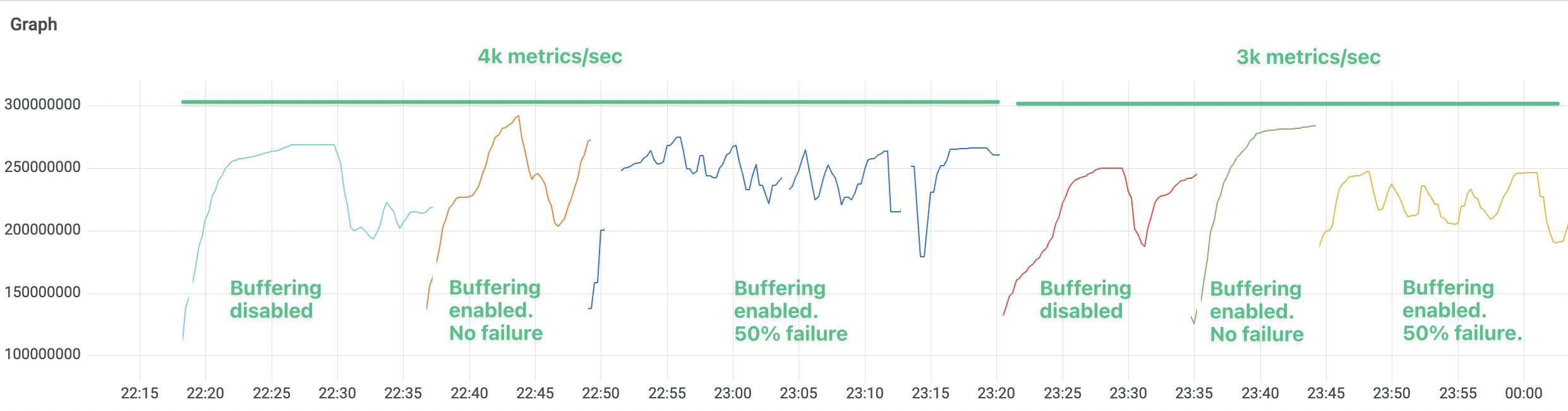
Enabling [ingestion buffering](/ingest/metrics-traces/collector/configure/optimizations#enable-ingestion-buffering)
doesn't have any substantial impact on memory usage.
The following graph displays the memory usage of a Collector instance handling
different input data volume (4k and 3k metrics per second, respectively). The memory
usage doesn't change significantly after enabling the buffering feature or increasing
the failure rate from 0% to 50%.