> ## Documentation Index
> Fetch the complete documentation index at: https://docs.chronosphere.io/llms.txt
> Use this file to discover all available pages before exploring further.
# Filter across pages using pinned scopes
Pinned scopes aren't available for all pages. Users can't create pinned scopes at
this time, but you can [configure a scope](/administer/pinned-scopes). Contact
[Chronosphere Support](/support) to have scopes created for you.
Pinned scopes define a set of consistent criteria for users to select a subset of
data. After configuration, pinned scopes appear on several pages in
Chronosphere Observability Platform.
## Filter using a pinned scope
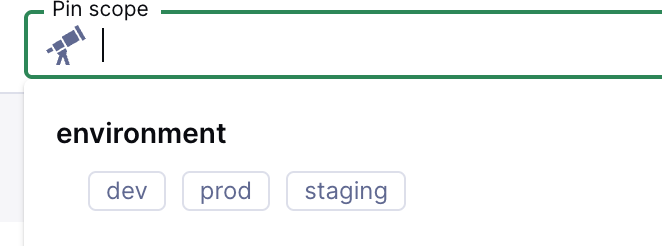
Click the **Pin scope** box in a supported page to display the configured filters.
Click any filter to select it.
 A pinned scope can exclude all data from a page, or sections of a page. For monitors
on a service page, if no monitors match the selected filter, Observability Platform
displays all monitors instead.
You can use pinned scopes to group [signals](/investigate/alerts/notifications/signals)
inside a [monitor](/investigate/alerts/monitors) in a service, to reduce alerts.
## Modify a pinned scope in a query
When you activate a pinned scope on a page with user-generated queries, the
[chip](/navigate#chips) for the pinned scope displays with the query.
Click the pinned scope to activate or deactivate it.
To view the scoped query, click the telescope icon.
A dialog box displays both the current pinned scopes modifying the query and the full
scoped query. Click **Copy scoped query** to copy the full query to your clipboard.
For example, if you're using the pinned scope `environment:production`, and query
for `chronocollector_build_information`, the dialog would display a message similar to:
```text theme={null}
This query is being modified by the currently pinned scope
environment: production
The scoped query is:
chronocollector_build_information{environment=~"(|production)"}
```
You can copy the full query if necessary, and modify it.
### Scope conflicts
Queries with a conflict display with a yellow dot on the
telescope icon. A conflict occurs if the queries
have a label matcher that matches a pinned scope. When a scope conflict occurs, your
query might retrieve less data than expected.
To correct a conflict:
1. View the query.
2. Click the conflicting matcher. Conflicting matchers use a
warning icon and are highlighted.
3. The **Resolve conflict** window lists the conflicting matchers, and lets you
correct conflicts by taking one of the following actions:
* **Remove conflicting matchers:** Recommended. This field prepopulates with the
conflicting matchers. Leave as is, or delete a chip to remove some matchers. The
label matchers list updates based on the matchers to be removed.
* **Disable pinned scope:** Disable the pinned scope **for this query** or
**for the page**.
4. Click **Confirm** to continue or **Do nothing** to return to the previous page.
A pinned scope can exclude all data from a page, or sections of a page. For monitors
on a service page, if no monitors match the selected filter, Observability Platform
displays all monitors instead.
You can use pinned scopes to group [signals](/investigate/alerts/notifications/signals)
inside a [monitor](/investigate/alerts/monitors) in a service, to reduce alerts.
## Modify a pinned scope in a query
When you activate a pinned scope on a page with user-generated queries, the
[chip](/navigate#chips) for the pinned scope displays with the query.
Click the pinned scope to activate or deactivate it.
To view the scoped query, click the telescope icon.
A dialog box displays both the current pinned scopes modifying the query and the full
scoped query. Click **Copy scoped query** to copy the full query to your clipboard.
For example, if you're using the pinned scope `environment:production`, and query
for `chronocollector_build_information`, the dialog would display a message similar to:
```text theme={null}
This query is being modified by the currently pinned scope
environment: production
The scoped query is:
chronocollector_build_information{environment=~"(|production)"}
```
You can copy the full query if necessary, and modify it.
### Scope conflicts
Queries with a conflict display with a yellow dot on the
telescope icon. A conflict occurs if the queries
have a label matcher that matches a pinned scope. When a scope conflict occurs, your
query might retrieve less data than expected.
To correct a conflict:
1. View the query.
2. Click the conflicting matcher. Conflicting matchers use a
warning icon and are highlighted.
3. The **Resolve conflict** window lists the conflicting matchers, and lets you
correct conflicts by taking one of the following actions:
* **Remove conflicting matchers:** Recommended. This field prepopulates with the
conflicting matchers. Leave as is, or delete a chip to remove some matchers. The
label matchers list updates based on the matchers to be removed.
* **Disable pinned scope:** Disable the pinned scope **for this query** or
**for the page**.
4. Click **Confirm** to continue or **Do nothing** to return to the previous page.