

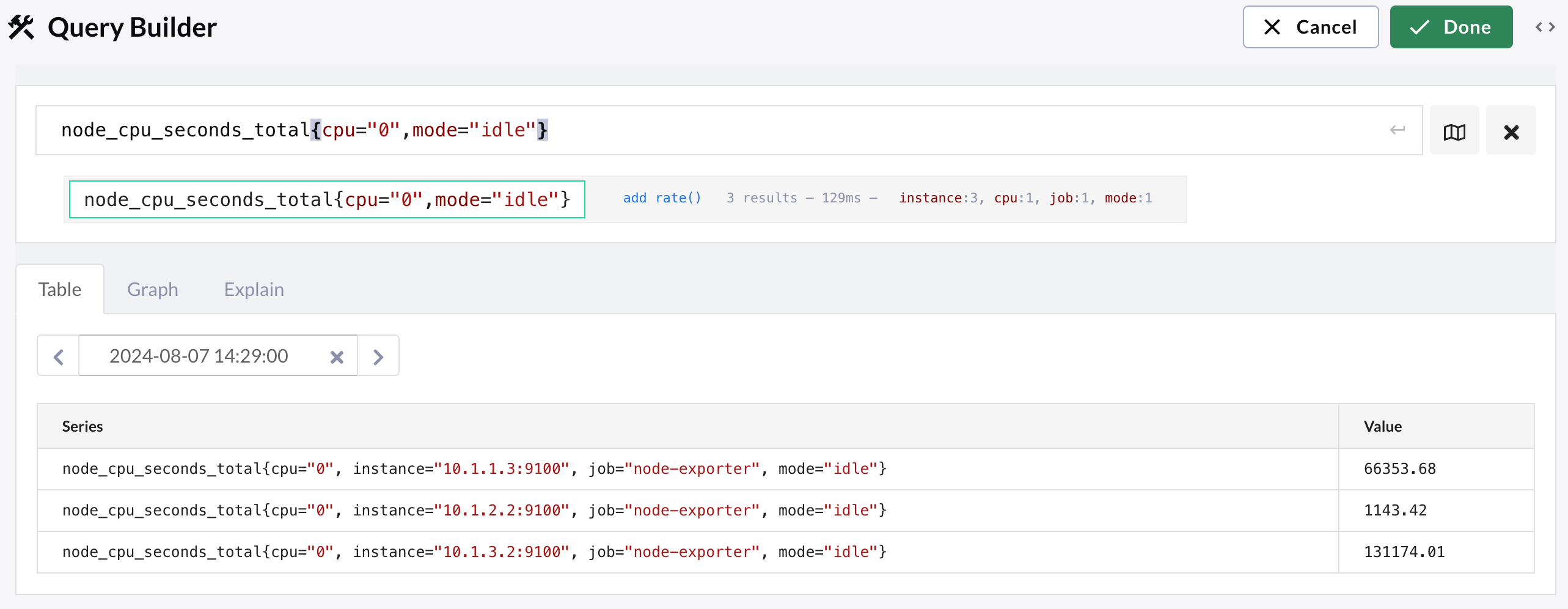
Expression section
The expression section contains the main query box for constructing your query, and the combined analysis and builder. As you enter content in the query box, the Query Builder automatically completes metric names, label names, label values, function names, operators, and modifiers as you type. After you construct a query expression, pressEnter
(Return on macOS) to submit it. To clear the query box,
click Remove query at the end of the query box.
The area following the expression field displays details of each part of the query
as a cascading tree. Each part provides an analysis of the results, including the
quantity, the time taken to fetch them, the labels, and the number of unique values
of each label. Hold the pointer over a value to display a summary of all values.
If the Query Builder has a recommendation for optimizing the query with a relevant
PromQL operator or function, the recommendation is displayed to the right of the
item. Click the suggestion to apply it to the existing query or hold the pointer
over the suggestion for an explanation.
If the original query consists of different types of parts (for example a function,
offset, and query), click the small + icon to expand each part for a greater
breakdown of the query. If the query consists of a subquery, click each of the queries
to run it separately, and again for more breakdown and analysis.
If you hold the pointer over the text of any query part, you can edit each part as
PromQL or as a Form step.
PromQL mode
Adding and editing parts in PromQL mode is similar to the overall expression field, offering autocompletion for metric names, label names, label values, function names, operators, and modifiers as you type. PressEnter to submit any updates
to the query.
Form mode
If you’re new to PromQL you can toggle creating a query between PromQL and Form mode. Form mode lets you define a query using a form-type interface, combining different components to build complex and nested expressions. As you step through the components, you’re prompted for other components to add as parameters. Add them by clicking the prompt, and then click Apply changes for each child component and finally the parent component. The components for the form vary depending on the type of expression you want to construct.- Select data: Return a set of time series and values based on the criteria supplied. Use this component to return an instant or range of values, an offset value, or a timestamp range.
- Aggregate over labels: Take a range of values and generate a single significant value. You can also use this component to either keep or exclude the labels you specify.
- Binary operation: Perform a binary operation or comparison between two values.
- Call function: Apply PromQL functions to a vector of time series.
- Literal value: Add a literal string or integer value into an expression.
- Subquery: Add another query to an expression.
- Parenthesis: Add parenthesis to an expression.
- Unary expression: Use unary operators between components.
Results section
The results section provides information about the query you entered, based on these tabs:- Table: A list of the first 1,000 unique series and any associated values.
- Graph: A series based on the selected query item that’s plotted on a stacked or unstacked graph. You can change both the time range the graph focuses on, and the resolution.
- Explain: Additional information about the selected node in the Query Builder, and guidance (if available).